
Leica Total Station plugin for Hydromagic
In some cases you might want to use a total station instead of a GNSS or RTK receiver. For instance, when creating a sounding below a bridge, or in a mine, you won't have GPS reception and using a total station would be the only alternative. This tutorial shows how to use a Leica Total Station to track your boat or USV to record soundings.
In order to connect a Leica Total station to Hydromagic, you will need:
- The Leica Captivate TS Streaming App;
- A Leica serial cable, or a WiFi or Bluetooth connection;
- The Hydromagic Leica Total Station plugin.
Loading the Leica Total Station plugin for Hydromagic
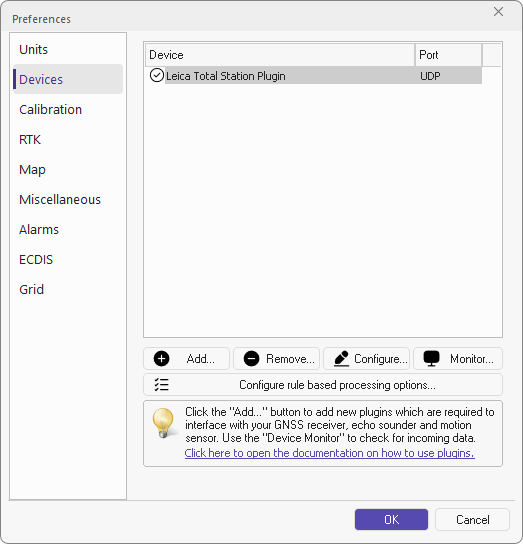
To load this plugin, open the preferences window by selecting "Preferences..." from the "Options" menu. In the window that appears, select the "Devices" tab. Next click the 'Add...' button.
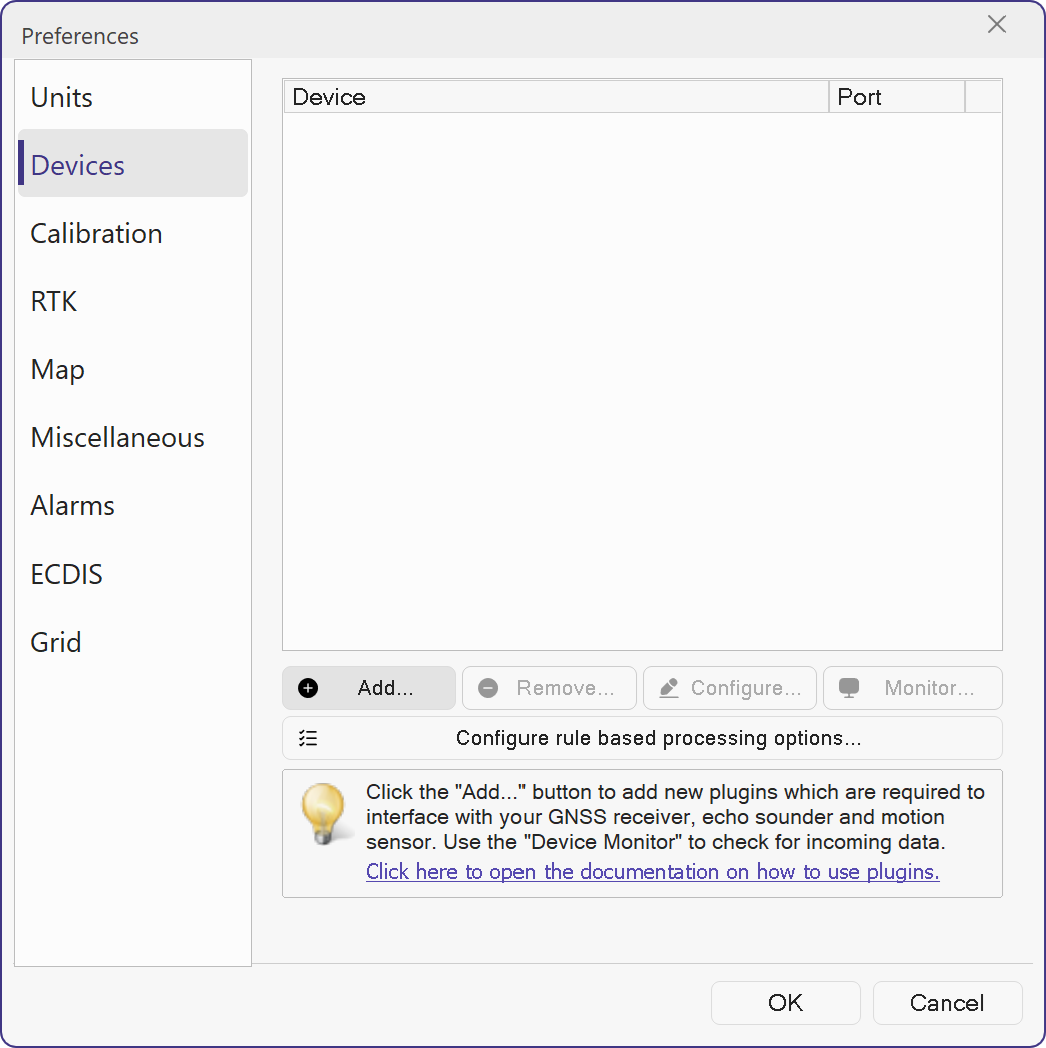
Select the "Devices" tab in the "Preferences" dialog.
A list of available plugins will be displayed. In this list, select the "Leica Total Station Plugin" and click "OK", to load and display the configuration dialog.
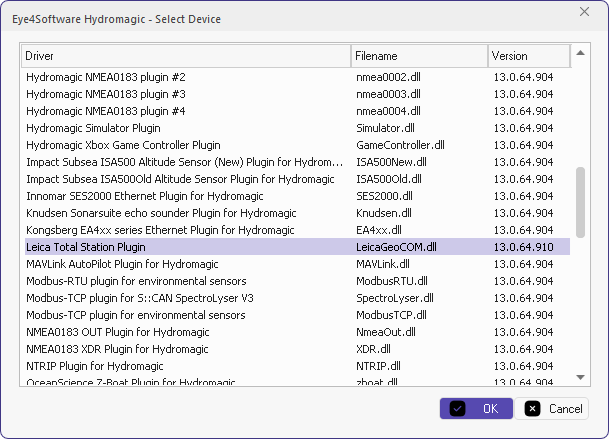
Select the "Leica Total Station Plugin" from the list and click "OK".
Configuring the Leica Total Station plugin
Serial or Ethernet Communications
First you must configure the serial or Ethernet communication with the Total Station. This plugin supports incoming data over a serial port, Ethernet, or WiFi. For more information on this, please see the General information on using plugins document.
Protocol
When connecting the Total Station via the "TS SurveyStreaming" app on your Leica controller, you can choose between different output formats to stream the real time data to the computer. The Hydromagic plugin support the following data formats:
- GSI8 Polar and Cartesian;
- GSI16 Polar and Cartesian;
- ASCII Pt, N, E, Ht, Date;
- ASCII Pt, E, N, Ht, Date;
- Pseudo NMEA GGA.
Make sure that you select the same format in both the "TS SurveyStreaming" app and the Hydromagic Leica Total Station plugin.
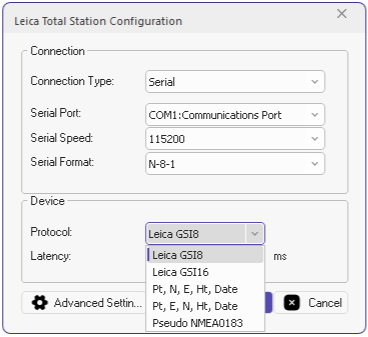
Select the correct protocol from the list.
Testing the plugin configuration
When the configuration is correct, the "TS SurveyStreaming" app is running on the Total Station and the correct cable between the Total Station and your computer is used, you should be able to see the correct easting and northing coordinates displayed in the Data View.
When you encounter problems getting the serial port to receive data, we suggest you look at our YouTube tutorial on troubleshooting serial communications using the puTTY software (free software). Alternatively, you can use the built in "Communications Monitor" to check if the software is receiving any data at all.
To open the "Communications Monitor" Open the preferences window by selecting "Preferences..." from the "Options" menu. In the window that appears, select the "Devices" tab. Next select the "Leica Total Station Plugin" and click the "Monitor..." button. The communication monitor appears, and should display incoming data as shown below (GSI16 protocol used for this example):
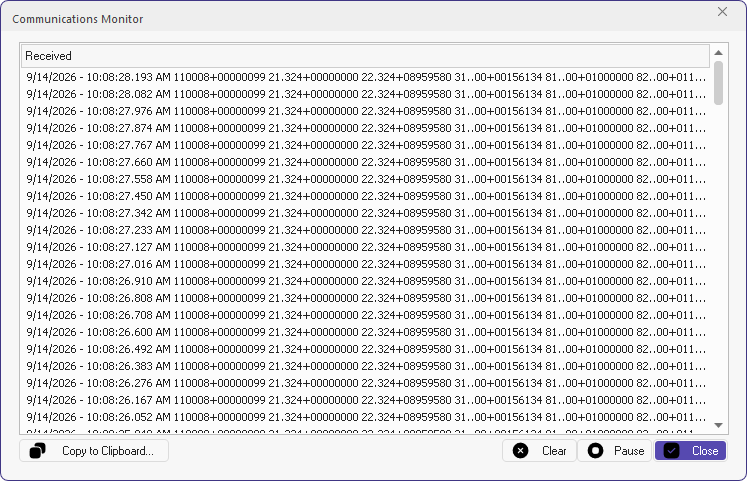
Monitor the Leica Total Station plugin.
Unloading the Leica Total Station plugin
To unload the Hydromagic Leica Total Station plugin, open the preferences window by selecting "Preferences..." from the "Options" menu. In the window that appears, select the "Devices" tab. Next select the "Leica Total Station" and click the "Remove..." button.
Plugins can be unloaded using the "Remove" button.